










 |
Storage Media |  |
Hard Disks |  |
DVD Disc |
|
Optical Discs |  |
Tape Media | 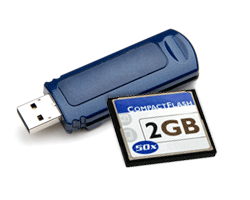 |
Flash Drive |
 |
Zip Catridges |  |
RAID |  |
Removable Media |
 |
(U)niversal (B)us (S)erial |
Universal Serial Bus (USB)
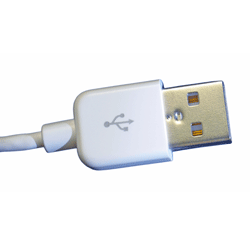 |
Nowadays, Universal Serial Bus (also known as USB) is considered a very simple and flexible way of connection between personal computer (PC) and numerous of peripherals. With USB booting supported by your computer motherboard's BIOS, devices such as mouse, printer, digital camera, webcam, speaker, modem, network connection…etc, it can now be connected to your computer at ease through USB port (i.e. USB hub). This feature, when being compared with serial or parallel port connection, is critically advantageous since it offers much more convenience in terms of speed, mobility and flexibility.
USB Main Features
- A maximum of 127 peripherals can be connected to a single USB host controller.
- USB device has a maximum speed up to 480 Mbps (for USB 2.0).
- Length of individual USB cable can reach up to 5 meters without a hub and 40 meters with hub.
- USB acts as "plug and play" device.
- USB can draw power by its own supply or from a computer. USB devices use power up to 5 voltages and deliver up to up to 500 mA.
- If a computer turns into power-saving mode, some USB devices will automatically convert themselves into "sleep" mode.
USB Speed
- USB supports 3 types of speed:
- Low speed (1.5 Mbps)
- Full speed (12 Mbps)
- High speed (480 Mbps)

USB- A Hot Swappable Device
Automatically detected by Operating System when being connected to PC, USB plays a role of "plug and play" device. Once the driver disk is asked and installed by an Operating System, USB's operation will be activated and it can talk to the PC freely. It can be disconnected from the computer at any time. This is also a characteristic of "hot-swappable".
USB Connection
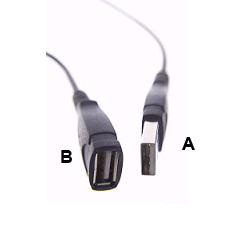 |
USB devices are connected to PC using USB cable. This cable consists of 2 wires for power supply (up to 5 volts) and a twisted pair of wires used to carry data.
USB cable uses "A and B connector" to help in reducing confusion when user connects USB device to a PC.
- "A" connector head "upstream" towards the computer
- "B" connector head "downstream" towards the individual devices
By having this feature, a user now can plug the device correctly without having any difficulty differentiating two respective connectors. Nowadays, mini-B connector is manufactured for small devices such as PDA, mobile phone or digital camera. For reference, the A-plug's size is approximately 4x12 mm, the B-plug's is approximately 7x8 mm, and the B-mini plug's is approximately 3x7 mm.
USB Power Supply
You might bear a question in mind that where USB devices do derives the power supply from. And it is true to say that some high-power devices such as printer, removable hard-disk drive…have their own power adapters. However, for low power devices such as mouse, digital camera or web-cam etc…, power will be drawn from the bus in order to simplify the procedure.
As high-power devices come with their own power adapter, they do not need to consume power supply from the system. However, low-power peripherals (e.g mouse, keyboard) and some storage devices (e.g thumbdrive, portable hard drive) get their power supply from the system. If there are too many such devices draining power from the system, having a powered hub will be a better solution. This hub contains a transformer that will ensure sufficient power is supplied to USB devices without overloading the computer's supply.
How USB Works
When a computer is powered up and USB devices are connected to a hub, the system will query and request from them the information on how much bandwidth is needed. Enumeration process will then occur where each device is assigned with a unique address. After that, the system will determine what kind of data the USB devices wish to transfer. There will be 4 different modes of transfers:
- Interrupt: used for devices which transfer little amount of data but need fast response (E.g. mouse, keyboard)
- Bulk: used for devices which receive big packet of data (E.g. printer)
- Isochronous: used for devices which requires streaming process (E.g. speaker, webcam)
- Control: short, simple commands to the device, and a status response.
After all connected devices are enumerated, the computer system will take care of the overall bandwidth and allocate it to different devices according to their transfer mode. Most of the bandwidth will be used for interrupt and isochronous transfer to ensure their requests are guaranteed. Once 90% of bandwidth is taken, the computer will refuse any other transfer from these two modes. Bulk or control transfer (if available) will then take up the remaining bandwidth amount, which is up to 10%.
Handle Your "PLUG AND PLAY " USB with Care
"Plug and play" does not mean you can plug your USB devices out of the PC whenever you want since this may lead to severe damage. Below are some points you need to take note of when using the USB devices:
- Copy files from or to the devices appropriately
- Once copying process is done, do not ever attempt to immediately remove your USB device(s) from the computer.
For Windows Users:
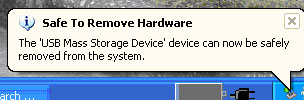
Look out at the taskbar and the find the icon "Remove Hardware". Click on it and wait until the message containing the list of USB driver appears.

Choose the device you wish to remove from the system by clicking on the message (E.g. Safely Remove Mass Storage Device - Drive(G:)). Once the below safely message appears, you are able to remove the device .

For Mac Users:
- Drag the white USB drive icon to the Trash Can which is located on the Dock. The Trash Can will change to the Eject Icon.
- Once the white USB drive icon is no longer visible on your desktop, you can now safely remove the device(s) from the USB port.