










Locate your Outlook Express Store Folder
The Microsoft Outlook Express Store Folder is a special mail database folder, often marked as a hidden folder that contains all your email in the form of DBX files. DBX files are assembled with gibberish characters that are unreadable and suffixed with the *.dbx file extension.
To locate the Store Folder, follow these steps:
- Open Microsoft Outlook Express
- Click Options on the Tools Menu
- Click the Maintenance tab
- Click the Store Folder button
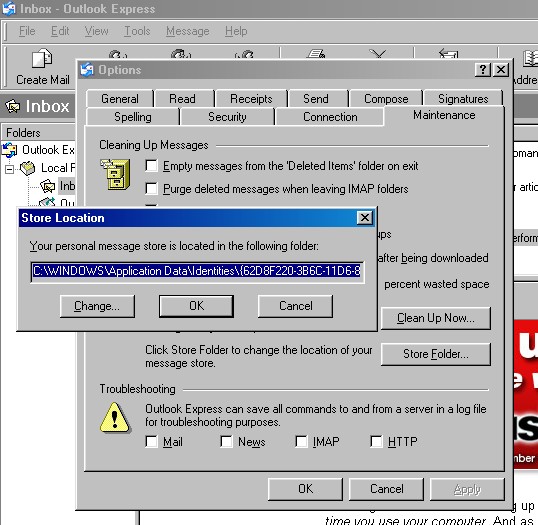
- Highlight the Store Folder path
- Press CTRL + C to copy the path onto the clipboard
- Click OK twice to close the Options panel
- Open Windows Explorer
- Paste the path onto the Windows explorer address bar
- Hit Enter
