







| Home > Support > Data Recovery Guide > DIY Data Rescue > Windows Troubleshooting > System Files Corruption |
Windows Boot Failure with Missing File Error
OBSERVATIONS
When you boot up the computer, an error message prompts you that Windows is unable to load due to one or several missing or corrupted system files.
![]()
POSSIBLE CAUSES
The system boots up from the hard disk and could not locate the essential system files to start up Windows. This can be caused by a virus infection, system files or Windows registry settings corruption.
![]()
RESOLUTION
There are generally three methods to repair a corrupted system.
USING SYSTEM FILE CHECKER
First, boot up Windows in Safe Mode. Safe mode is a diagnostic mode that is loaded with absolute minimal configuration and generic drivers that allows you to troubleshoot system error and corruption within the Windows environment.
If you can enter Safe Mode successfully, you can use the System File Checker to detect and replace corrupted files automatically.
For Windows 98 Users,
- Click Start, select Run
- Type in: sfc
- Select Scan For Altered Files
- Click Start
System File Checker will scan your Windows folder and prompt you to replace any files that are corrupted. You are then given the choice to restore or ignore the corruption. - Alternatively to replace a specific file, type drive:\Windows\path\file (where drive refers to the Windows directory which is generally C, path is the folder which the file is contained in and file is the file that you want to extract)
- Click Start
- In the Restore From text box, type in: C:\WINDOWS\options\cabs
- In the Save File In text box, type in the location of the file which is to be replaced or use the Browse button to select the directory
- Click Start, and then follow the instructions on the screen
For Windows XP/2000 Users
- Insert the Windows Setup Disc into your computer
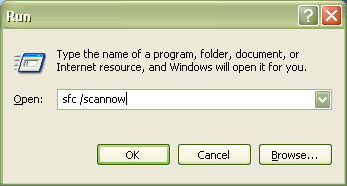
- Click Start, select Run
- Type in: sfc /scannow and click OK
- The Windows File Protection dialog box starts up and a system scan begins. Follow the instructions on the screen.
If you're unable to enter Safe Mode, consider the second option.
Manual Patching
This method manually patches or replaces the corrupted files with new working copies from the Windows CD in DOS mode.
For Windows 98 User,
- Boot up the computer with a Windows 98 start up disk
- Select Start Computer With CD-ROM Support from the Windows 98 Startup menu
- Insert the Windows 98 CD into the computer
- At the command prompt, type in: ext
Follow the instructions on the screen to extract the file you want
This method only applies to Windows XP/2000
- Enter Windows Recovery Console
- At the command prompt, type in: sfc /Scannow
System File Checker Tool will scan all protected system files immediately and replaces incorrect versions with correct Microsoft versions. - Alternatively you can use the expand command to replace a corrupted file.
Type expand source destination, where source is the path to the file that you want to expand on the Windows installation disk, and destination is the path to the location where you want to save the file, and then hit Enter
PERFORM WINDOWS REPAIR INSTALL
Supported by Windows 2000/XP, the Windows Repair functionality is one way to replace the corrupted system files with original copies, leaving your data, applications and settings intact.
Notes: If you are using Win XP, the built-in system restore may be your solution. During the system maintenance, if you are not able to view or locate certain files or folders, try to unhide them.